Nanomid Player Setup on Samsung & LG TV – Guide with Screenshots
Add your BalkanHD+ list to Nanomid Player in 3 minutes with an OTP code – no typing links with the remote.
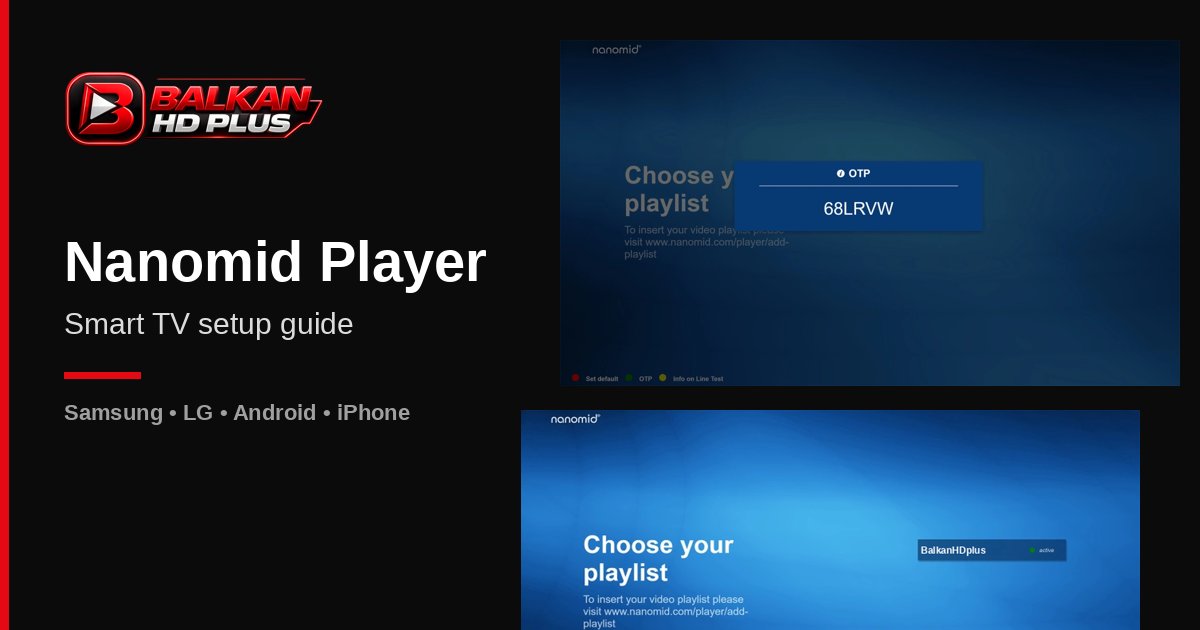
Note about apps: Your BalkanHD+ subscription does not include any app fees. Some apps are free, while others are paid separately to their developer. We are not affiliated with these app developers.
Nanomid Player is the app BalkanHD+ customers use most on Samsung and LG TVs. Unlike most IPTV players, you never type the link with your remote: the TV shows a short code (OTP) and you send the channel list from your phone or computer through the Nanomid website. The whole thing takes about three minutes. Below is every step with a picture, exactly as it looks on screen.
Before you start
- A compatible TV – Samsung Smart TV from 2014 onwards (except the J series) or LG Smart TV from 2016 with webOS 3.0 or later. Nanomid is also available for Android and Apple devices.
- Your M3U link, which we send on WhatsApp after activation, for example: http://balkanhdplus1.com:8080/get.php?username=...&password=...&type=m3u_plus
- A phone or computer with internet to send the list to the TV.
- A Nanomid licence – the app is paid (currently 9.99€ for three years) and you pay Nanomid directly, not us. Check the current price on nanomid.com.
Step 1: Install Nanomid Player
On a Samsung TV open Apps; on LG open the LG Content Store. Search for “Nanomid”, open NanomidPlayer and choose Install. If the app does not show up in the store, your model is not supported – try SS IPTV or Smart IPTV instead.
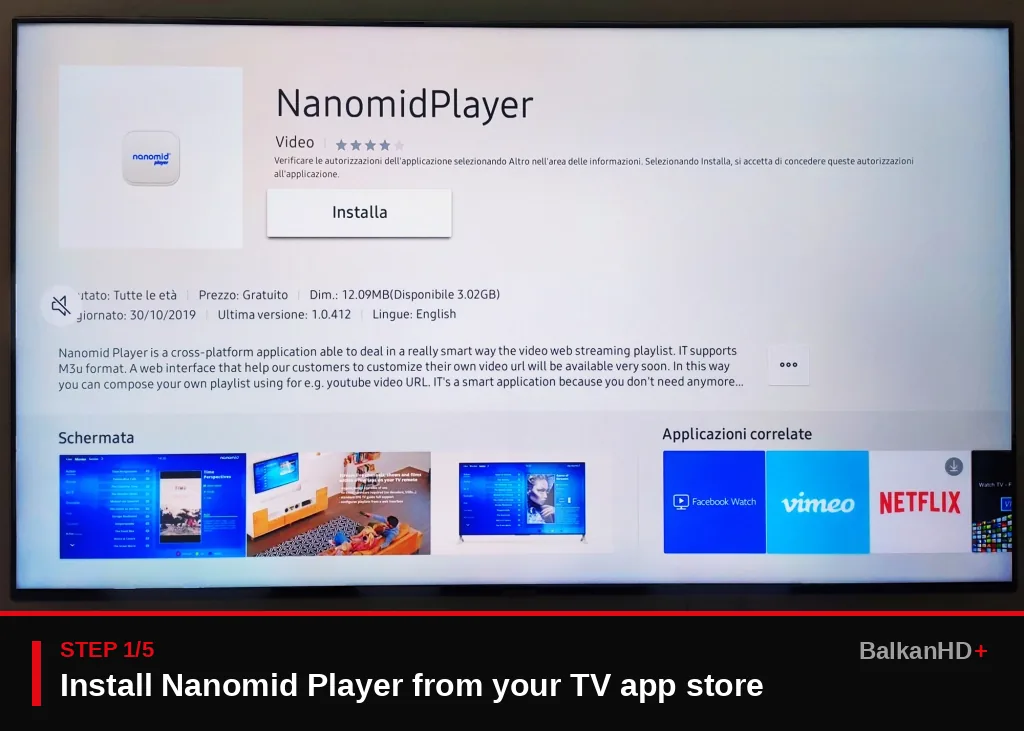
Step 2: Launch the app and press the green button
The first time you open it you will see “Choose your playlist” with no list. Press the green button on your remote and a six-character OTP code appears (68LRVW in the picture). Write it down or leave the TV on – the code is temporary, so do the next step straight away.
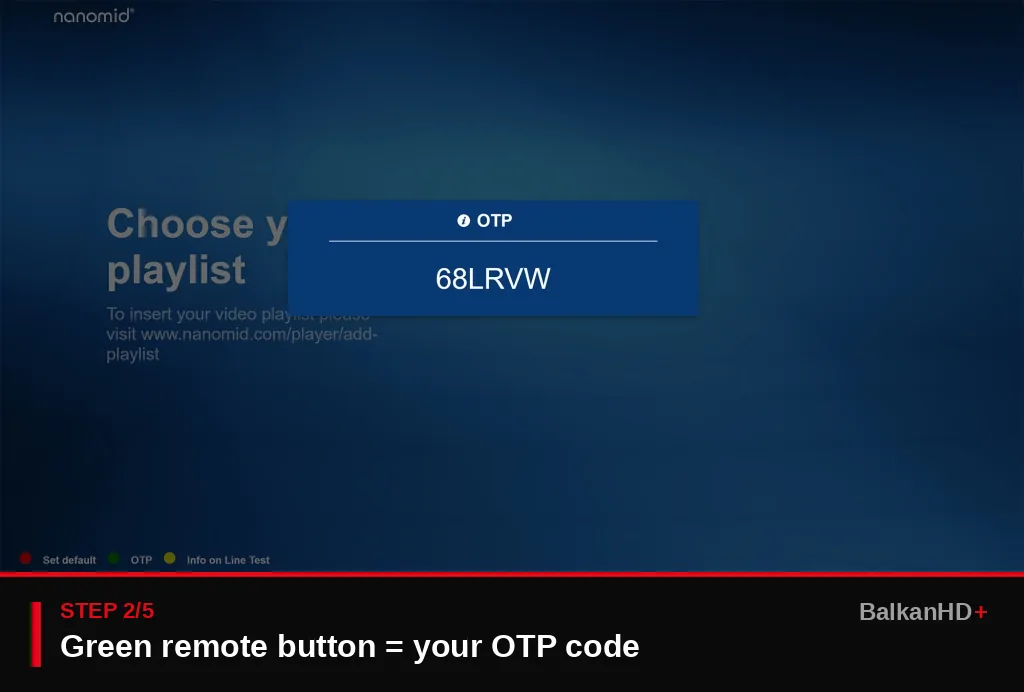
The coloured buttons always do the same thing: red sets the default list, green shows the OTP and yellow shows line info and the expiry date.
Step 3: Send the list from your phone or computer
On your phone or computer open nanomid.com/en/player/manage-your-app and fill in three fields under Submit Your List:
- Title – BalkanHDplus (the name you will see on the TV)
- URL – your full M3U link from the WhatsApp message
- OTP – the code from the TV
Leave Hide player info ticked and click Add list.
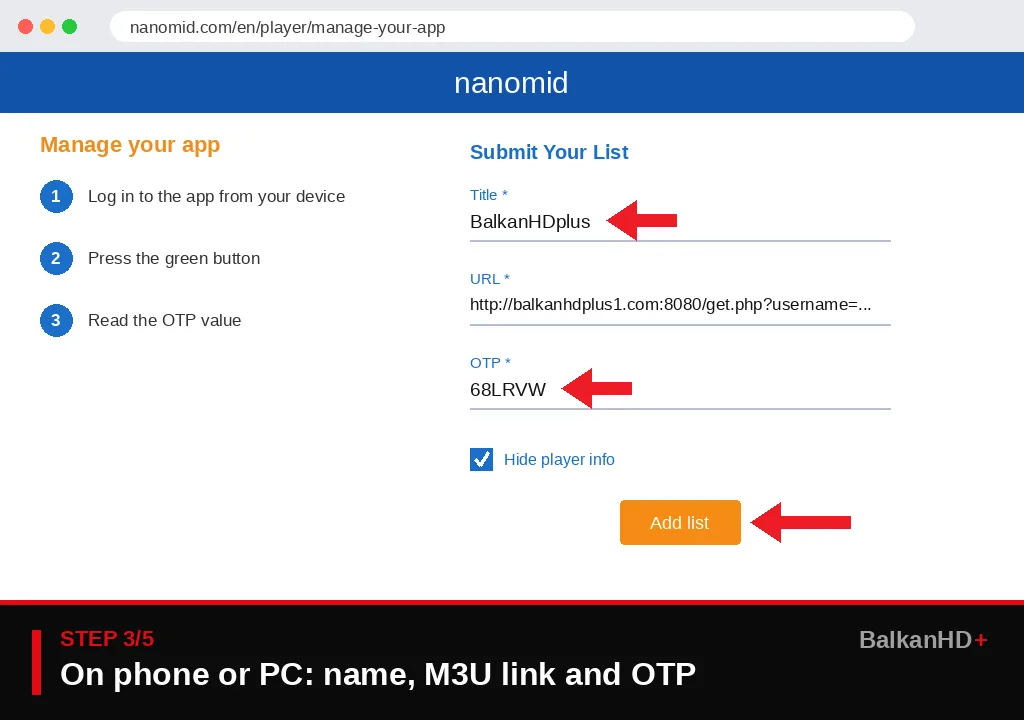
Nanomid only accepts links – you cannot upload an M3U file from your computer. Always use the link we sent you, unchanged.
Ready to start?
First month €6. After that, €10/month or €100/year. No obligation to renew.
Step 4: Restart the app and select your list
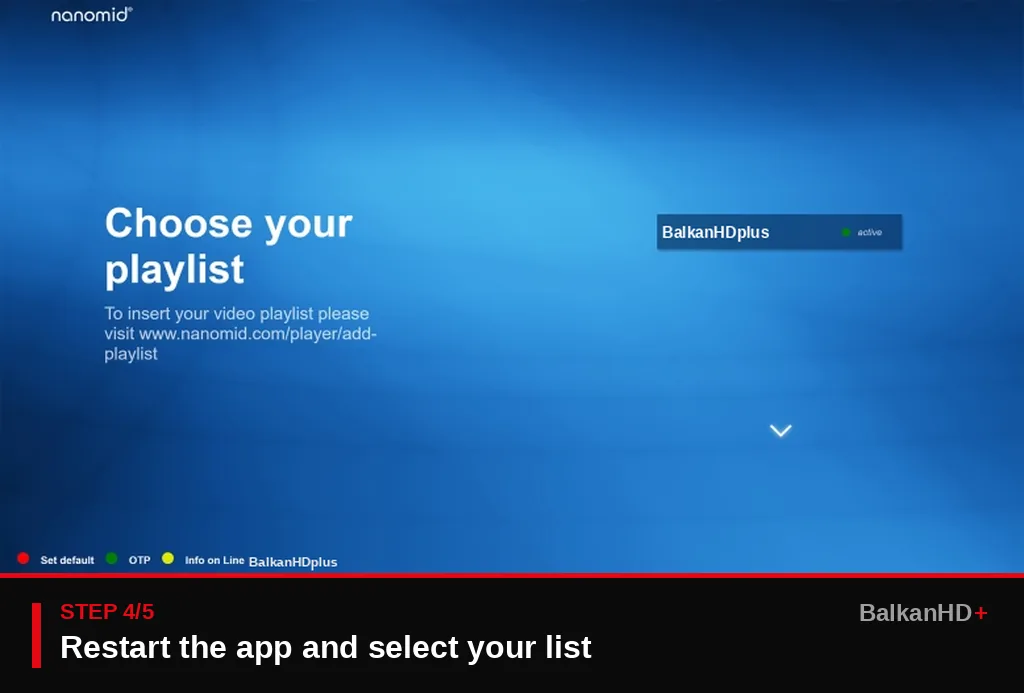
Close Nanomid on the TV and open it again. Under “Choose your playlist” you will now see BalkanHDplus marked green active. Select it and confirm. If you have several lists, press the red button to make BalkanHDplus the default so it opens automatically.
Step 5: Watch live TV, movies and series
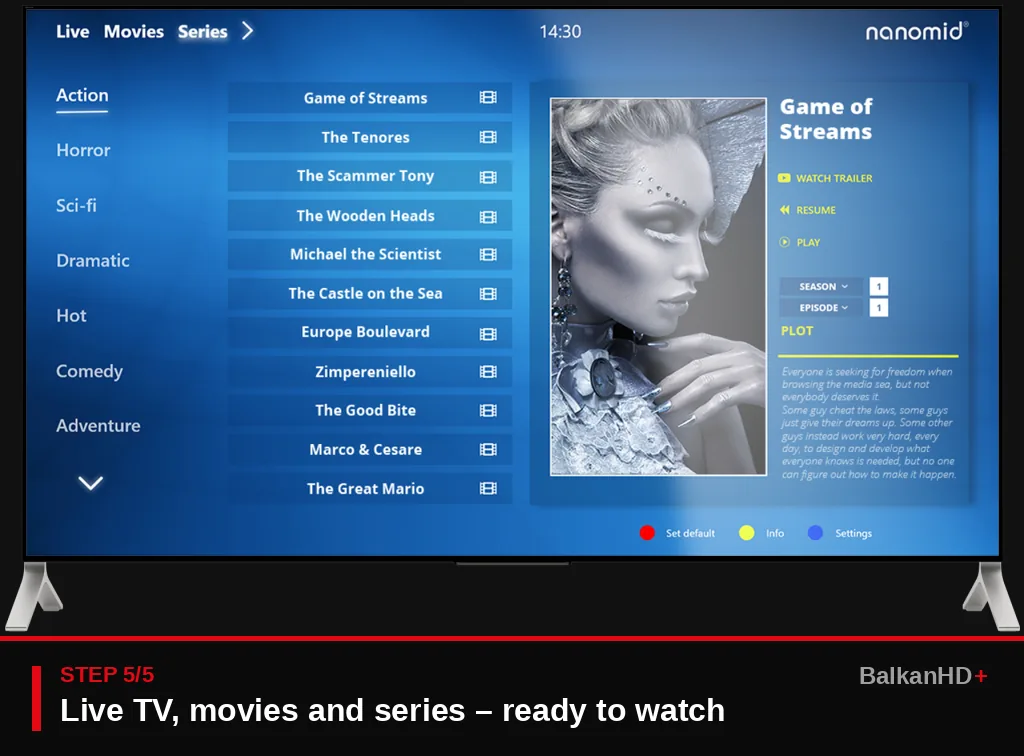
Top left you switch between Live, Movies and Series; categories are on the left – Serbian, Croatian, Bosnian, Montenegrin and Macedonian channels, sports and movie channels. The first load of a large list can take around twenty seconds; after that zapping is quick.
Common problems and fixes
The list does not appear after restarting
The OTP most likely expired before you clicked Add list. Press the green button on the TV again and send the list with the new code.
The list appears but channels will not load
Check the link was copied in full – usually the part after “password=” is missing. If the link is correct, message us and we will check your subscription.
The picture freezes or lags
A Smart TV on WiFi is the usual cause. If the router is close by, connect the TV with a cable. More fixes in IPTV buffering – 12 solutions, and the speed you need is covered in how much internet for IPTV.
How do I delete an old list?
On the same Nanomid page, under Remove Your Lists, enter a fresh OTP from the TV and remove the lists you no longer use.
Frequently Asked Questions
Is Nanomid Player free?
No. You pay Nanomid for the licence (currently 9.99€ for three years). Your BalkanHD+ subscription is separate and covers the channels, movies and series.
Do I have to type the link with the remote?
No. That is the big advantage of Nanomid – you send the link from your phone or computer and the TV picks it up.
Does Nanomid work on an older Samsung TV?
Samsung models from 2014 are supported, except the J series. For older TVs the safest option is an Android TV box or Fire TV Stick with IPTV Extreme.
What happens when I renew my subscription?
Nothing to change – the same link keeps working and the list refreshes the next time you open the app.
How much does BalkanHD+ cost?
You can start with a paid 6€ trial month. All packages are on the pricing page.
Ready to start?
First month €6. After that, €10/month or €100/year. No obligation to renew.
Different TV or device? Read IPTV on Smart TV or browse all setup guides.