IPTV Extreme Setup – Step-by-Step Guide with Screenshots
Set up IPTV Extreme in 5 minutes on an Android phone, TV box or Fire TV Stick and watch Balkan channels anywhere in Europe.
Note about apps: Your BalkanHD+ subscription does not include any app fees. Some apps are free, while others are paid separately to their developer. We are not affiliated with these app developers.
Got an Android phone, a TV box or a television running Android TV? Then IPTV Extreme is one of the apps we recommend most often to BalkanHD+ customers. It is free, needs no account, runs fine on older hardware and takes less than five minutes to set up. In this guide we walk through every screen in order, using real screenshots from the app, so even if you have never used IPTV before you can get your channels working on your own.
What you need before you start
- An Android device – phone, tablet, TV box, Android TV (Sony, Philips, TCL, Xiaomi) or an Amazon Fire TV Stick.
- Your M3U link, which we send you on WhatsApp after activation. It looks roughly like this: http://balkanhdplus1.com:8080/get.php?username=...&password=...&type=m3u_plus
- A stable connection – 15–20 Mbps is plenty for HD, around 30 Mbps for 4K. More on that in how much internet you need for IPTV.
A tip from our support chat: copy the M3U link straight from the WhatsApp message. Typing it by hand is the number one reason a playlist fails to load – one wrong character in the password is enough.
Step 1: Install IPTV Extreme
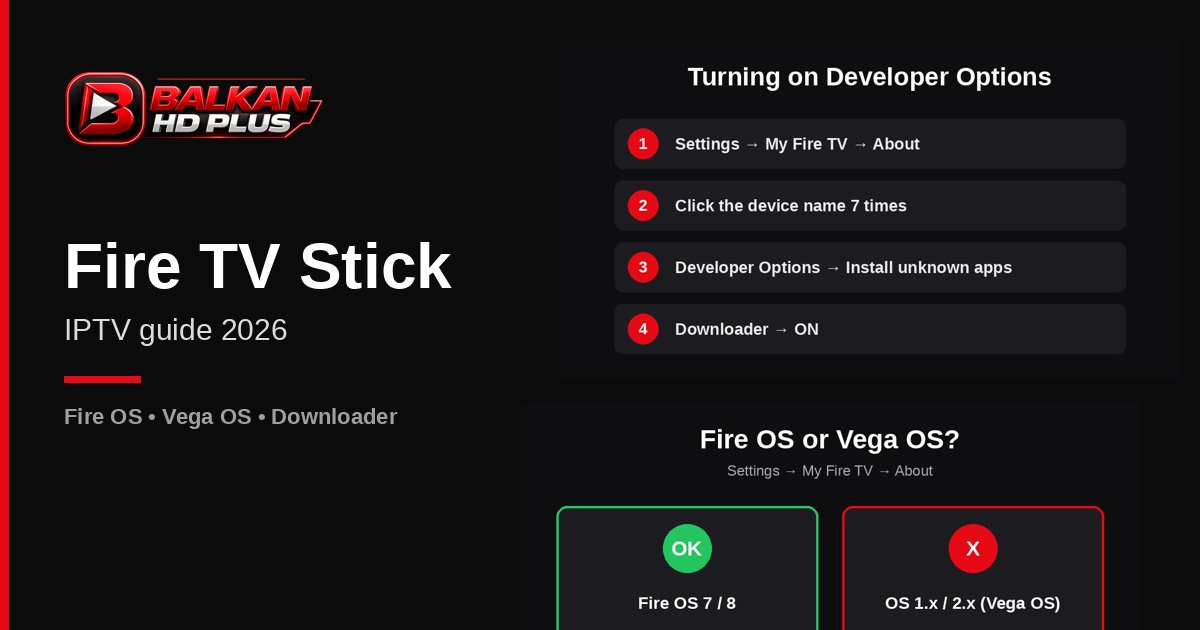
On your phone or Android TV open the Google Play Store, search for “IPTV Extreme” and install the app by developer Paolo Turatti (Google Play link). The app is not in the Amazon store, so on a Fire TV Stick you install it with the Downloader app – see our Fire TV Stick guide for the exact steps.
Step 2: Open the main menu
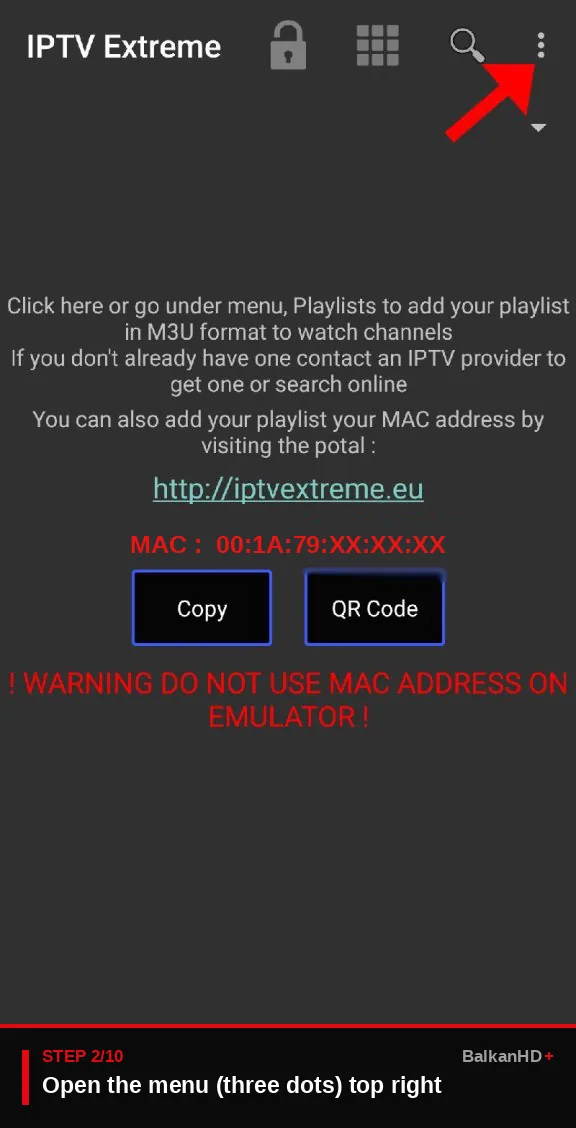
The first time you launch the app the screen is empty and tells you no playlist has been added. That is expected. Tap the three dots (⋮) in the top right corner. You can ignore the MAC address and the iptvextreme.eu portal shown here – BalkanHD+ works through the M3U link.
Step 3: Select “Playlists”
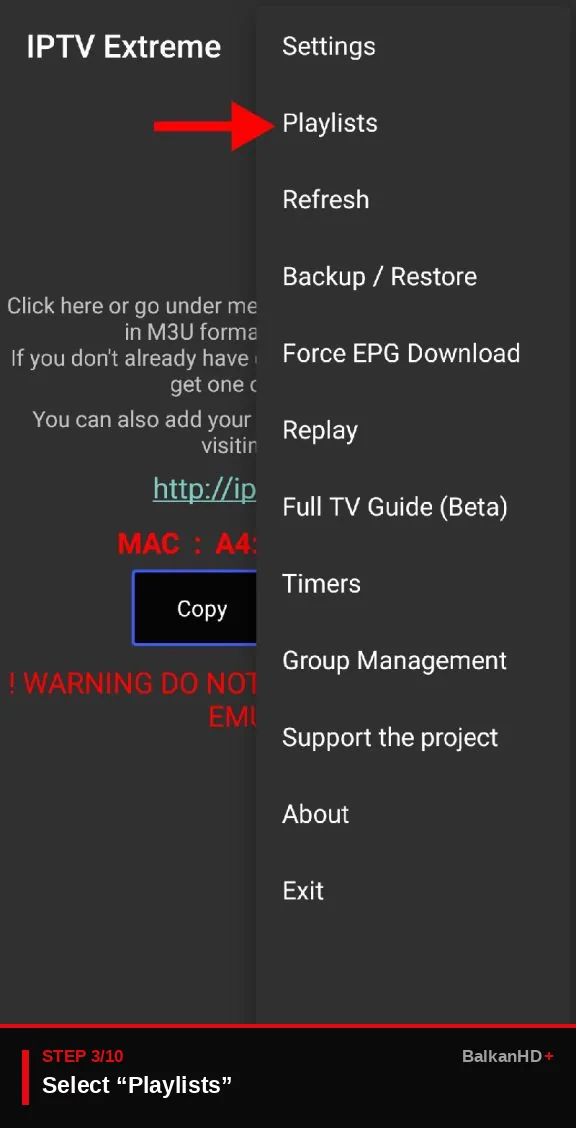
In the menu that opens, the second line is Playlists. This is where all your channel lists are stored.
Step 4: Tap “ADD PLAYLIST”
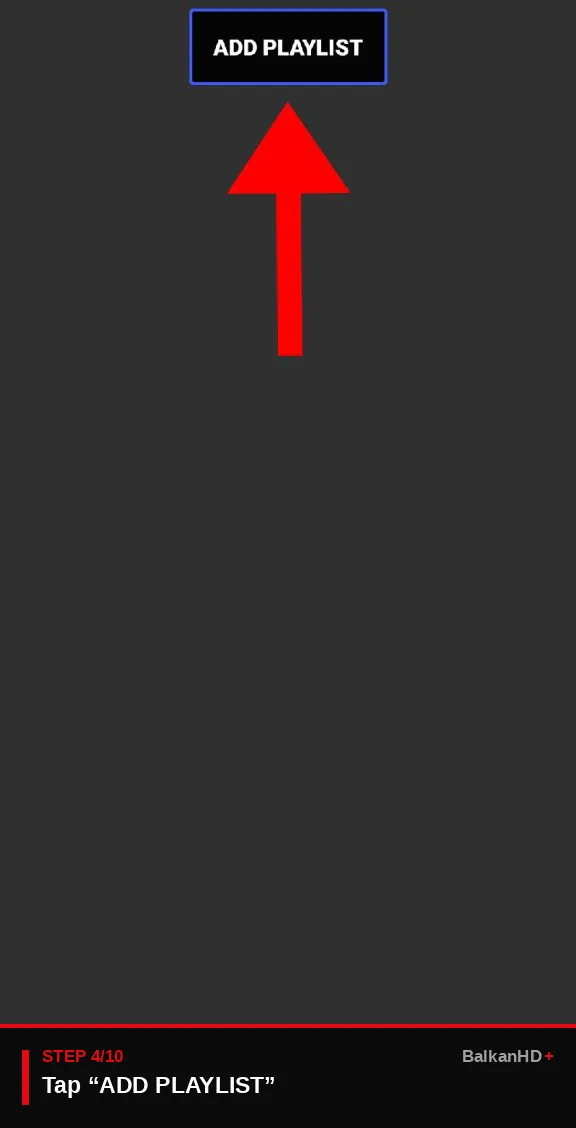
An ADD PLAYLIST button appears at the top. On a TV, move to it with the arrow keys on your remote and press the centre button.
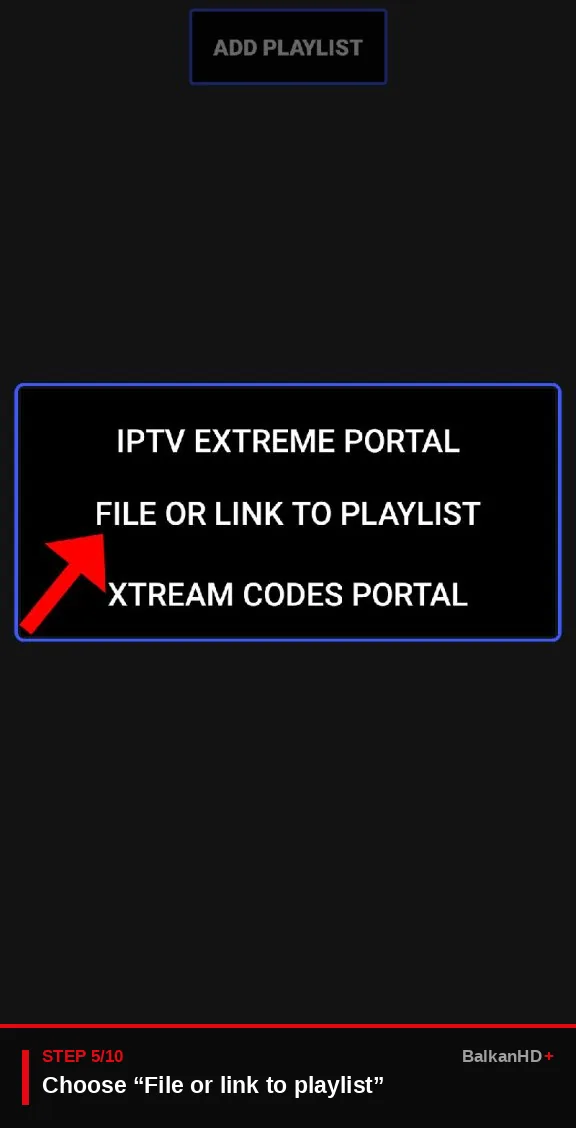
Step 5: Choose “File or link to playlist”
The app offers three ways to add a list. For BalkanHD+ pick the middle one – FILE OR LINK TO PLAYLIST. If you would rather enter server, username and password separately, XTREAM CODES PORTAL works too – just ask us for the details. We explain the difference in M3U vs Xtream Codes.
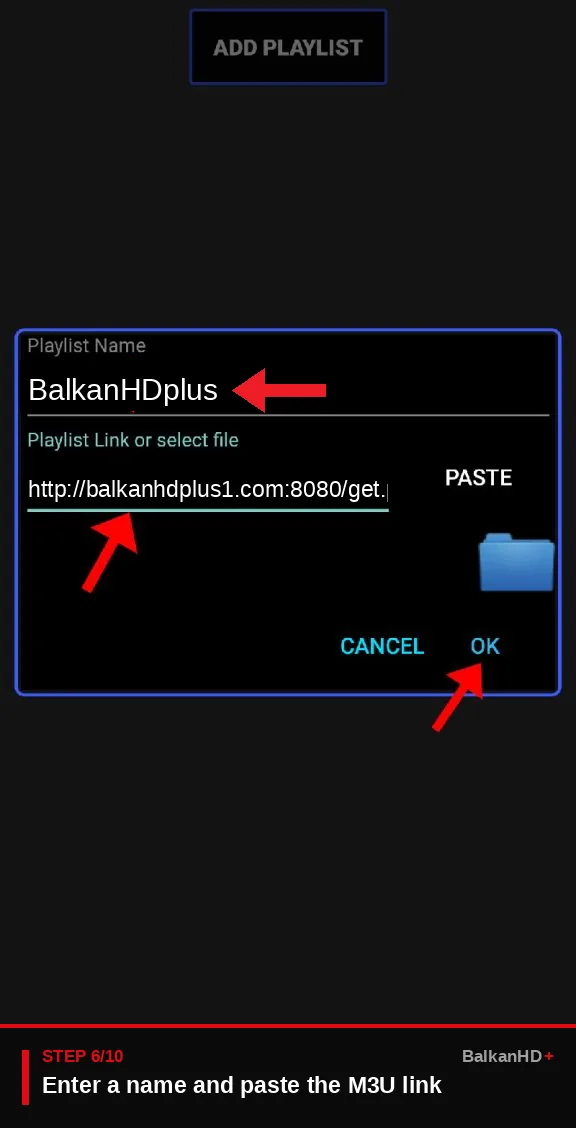
Step 6: Enter a name and paste the M3U link
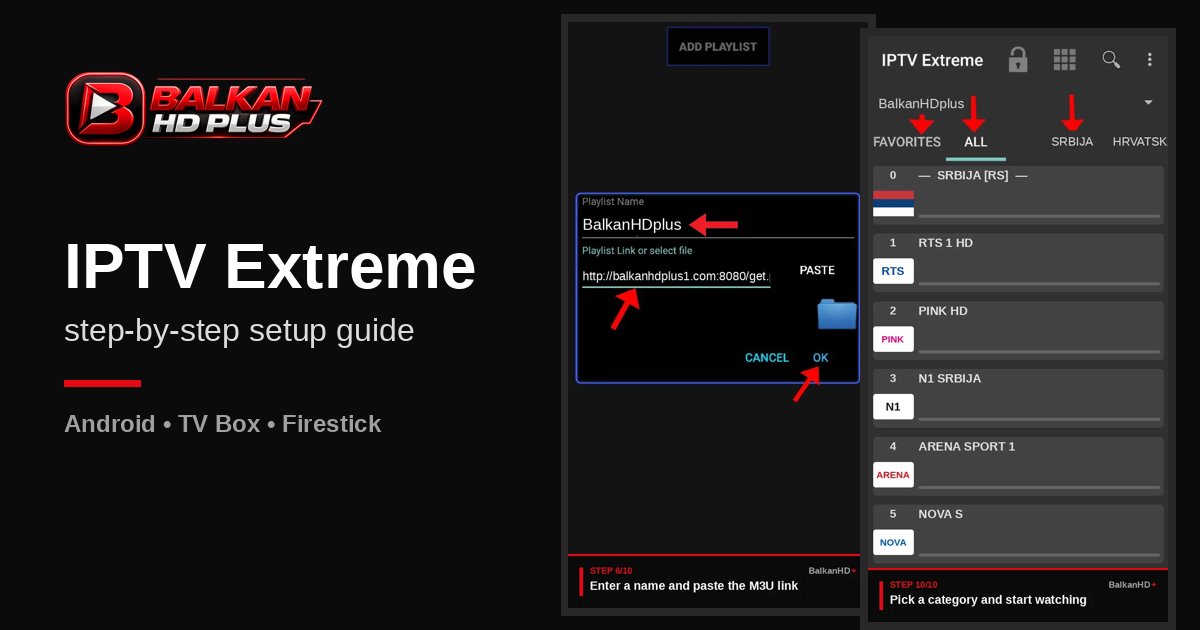
In Playlist Name type BalkanHDplus (the name is just for you, anything works). In Playlist Link paste your link – the easiest way is the PASTE button on the right. Make sure the link starts with http:// and has no space at the end, then tap OK.
Typing a long link with a TV remote is tedious. Easier route: send the link to your phone and paste it on the TV through the Google keyboard or a remote-control app.
Ready to start?
First month €6. After that, €10/month or €100/year. No obligation to renew.
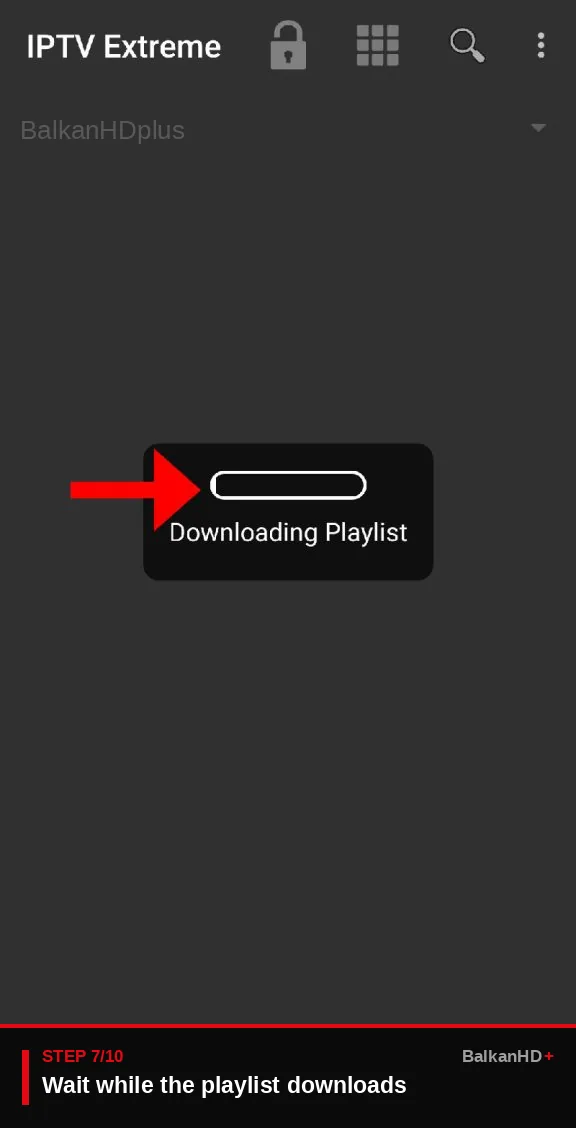
Step 7: Wait for the playlist to download
You will see Downloading Playlist. It usually takes 10 to 40 seconds depending on your connection and device – the list contains thousands of channels, movies and series, so let it finish.
Step 8: Confirm “New playlist saved successfully”
When this message appears the playlist is saved. Tap OK.
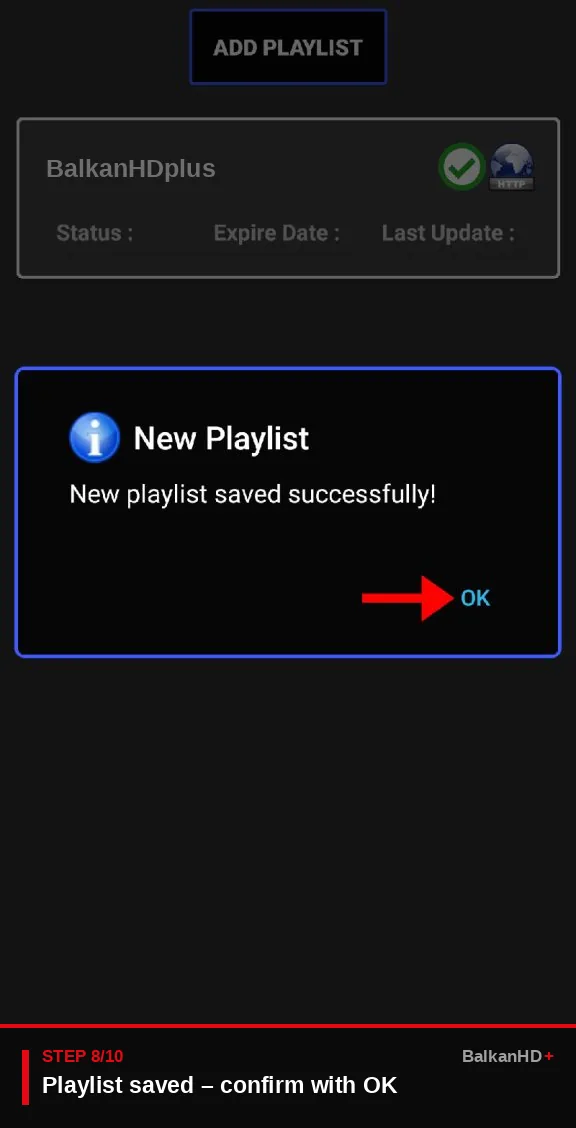
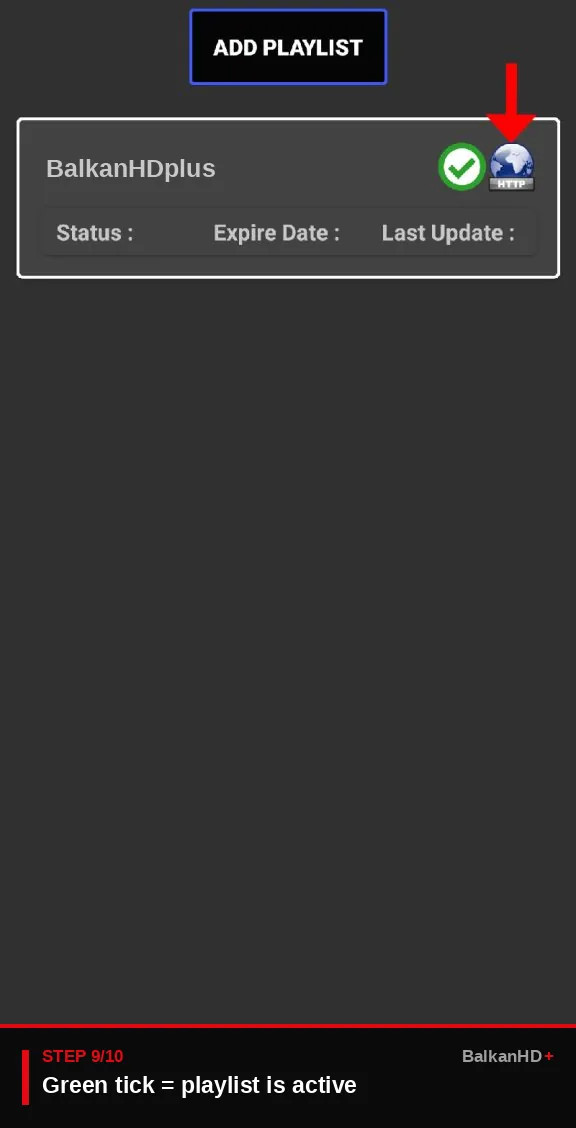
Step 9: Check that the playlist is active
In the playlist overview you will see a BalkanHDplus card. The green tick means it is the active list, and the globe icon marked HTTP shows the channels load from the link rather than a file on the device. Press back to return to the home screen.
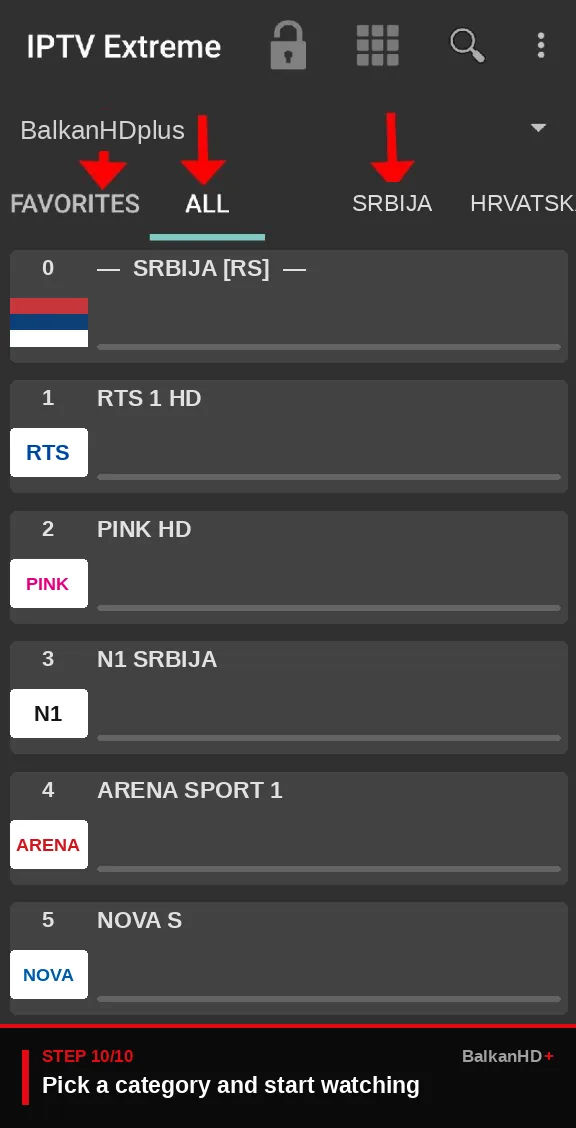
Step 10: Pick a category and start watching
The home screen now shows FAVORITES, ALL and categories by country – Serbia, Croatia, Bosnia, Montenegro, North Macedonia, sports, movies. Choose a category, tap a channel and it starts playing. Long-press any channel to add it to favourites so the ones you watch most are always on the first tab.
TV guide (EPG) – see what is on
The BalkanHD+ list already includes TV guide data. If programme names do not appear under the channels after the first launch, open the menu (⋮) and choose Force EPG Download. The first download can take a minute or two. The full grid view is under Full TV Guide in the same menu.
Common problems and fixes
The playlist will not load or hangs on “Downloading Playlist”
It is almost always the link. Delete the playlist, copy the link again from the WhatsApp message and add it from scratch. If it still fails, message us and we will check that your account is active.
A channel loads and then freezes
That is buffering, usually caused by a weak WiFi signal. If you can, connect the TV box with a network cable. More fixes in IPTV buffering – 12 solutions.
Sound but a black picture (or the other way round)
In Settings switch the player or toggle hardware decoding on or off. On lower-end TV boxes this usually fixes it straight away.
“Do not use MAC address on emulator” warning
This only applies to people running the app on a computer through an emulator. Since BalkanHD+ works via the M3U link, you can ignore it.
Frequently Asked Questions
Is IPTV Extreme free?
Yes. The free version shows ads in the menus but not over the programme. There is a paid Pro version without ads, but you do not need it to watch BalkanHD+.
Does IPTV Extreme work on Samsung and LG TVs?
No, it is Android only. For Samsung and LG we recommend SS IPTV or IBO Player Pro.
Can I use the same link on several devices?
The link is tied to your package. If you want to watch on two devices at the same time, message us and we will suggest the right package.
What happens when my subscription expires?
After you renew there is nothing to change – the same link keeps working. If needed, choose Refresh in the menu to reload the list.
How much does BalkanHD+ cost?
You can start with a paid 6€ trial month. All packages are listed on the pricing page.
Ready to start?
First month €6. After that, €10/month or €100/year. No obligation to renew.
Using a different app? Browse all our setup guides for Smart TV, Fire TV Stick, iPhone and Android.