IPTV on Fire TV Stick 2026 – Complete Guide (Fire OS, Vega OS, Downloader)
How to check whether your Fire TV Stick still supports IPTV apps, turn on Developer Options and set up BalkanHD+ – plus which model to buy.
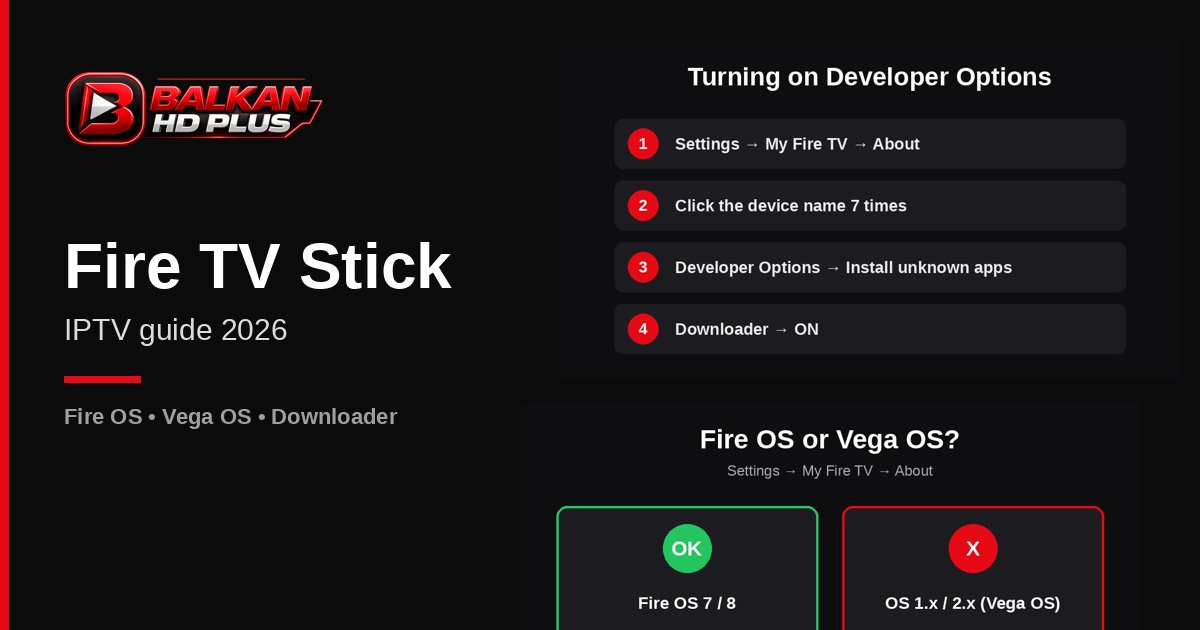
Note about apps: Your BalkanHD+ subscription does not include any app fees. Some apps are free, while others are paid separately to their developer. We are not affiliated with these app developers.
For years the Amazon Fire TV Stick was the cheapest way to turn any TV into an IPTV device. In 2026, however, something important changed: the newest Fire TV Stick models no longer allow installing apps from outside the store. This guide explains which model you have, how to set up BalkanHD+ on it, and what to buy if you are choosing a device now.
Important in 2026: Fire OS or Vega OS?
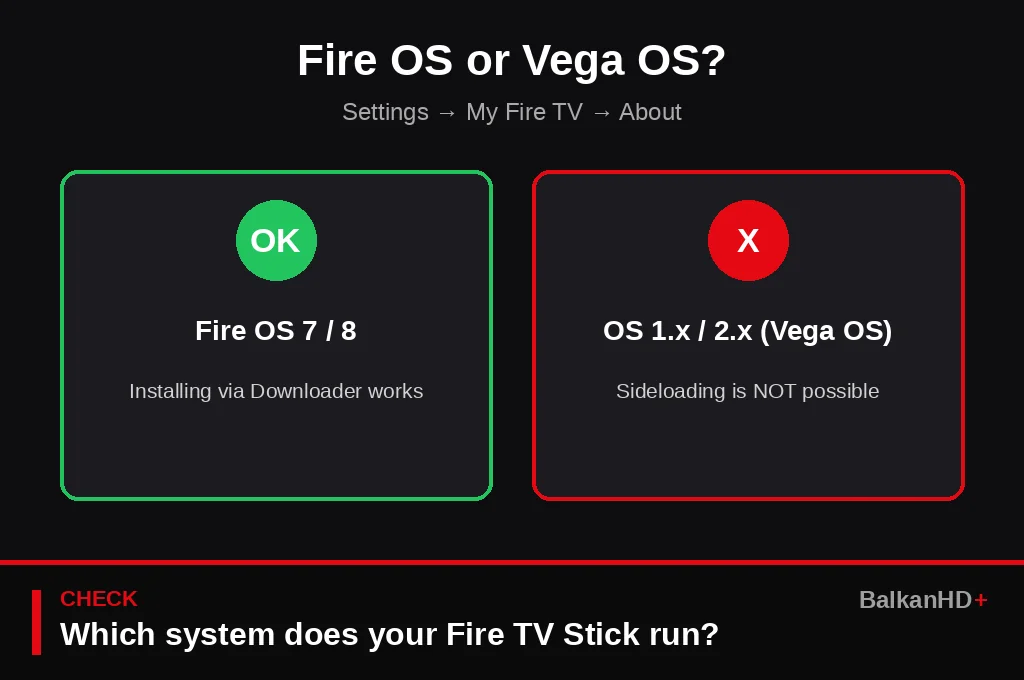
On new devices Amazon is replacing its Android-based system (Fire OS) with Vega OS. Vega OS does not run the Downloader app and cannot install APK files. So far this applies to the Fire TV Stick 4K Select, the Fire TV Stick HD (2026) and the Fire TV Stick 4K (2026).
How to check: Settings → My Fire TV → About. If it says Fire OS (e.g. 7 or 8), everything in this guide works. If it just says OS with a version starting with 1 or 2, you have Vega OS.
If you are buying a new device for IPTV, choose the Fire TV Stick 4K Max (2nd gen) or Fire TV Cube (both run Fire OS), or an Android TV box / Google TV device. If you already have a Vega OS model, look for an IPTV player directly in the Amazon Appstore or message us and we will suggest a solution.
What you need
- A Fire TV Stick running Fire OS, connected to the internet and an Amazon account.
- Your BalkanHD+ details from WhatsApp (M3U link or Xtream details with the server http://balkanhdplus1.com:8080).
- 15–20 Mbps is enough for HD, around 30 Mbps for 4K – more in how much internet for IPTV.
Step 1: Install Downloader
On the home screen choose Find → Search, type “Downloader” and install the app with the orange icon (developer AFTVnews). You use it to fetch the IPTV player that is not in the Amazon Appstore.
Step 2: Allow installs from Downloader
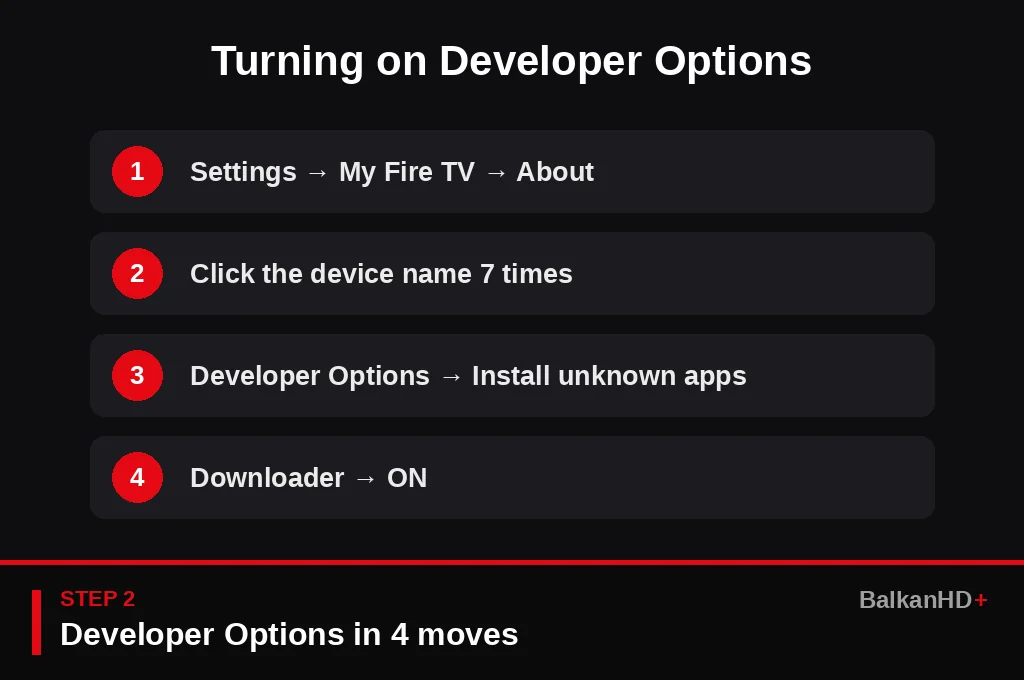
On newer Fire OS versions the Developer Options menu is hidden. Open Settings → My Fire TV → About, highlight the device name and press the centre button on the remote seven times. A message says you are now a developer. Go back, open Developer Options → Install unknown apps and switch on Downloader.
Step 3: Install an IPTV player
Open Downloader and enter the download link or code for the player. We send you the exact link or Downloader code on WhatsApp – so you are sure to install the correct, verified version and not a fake copy. When the download finishes choose Install, then Delete to remove the installer and free up space.
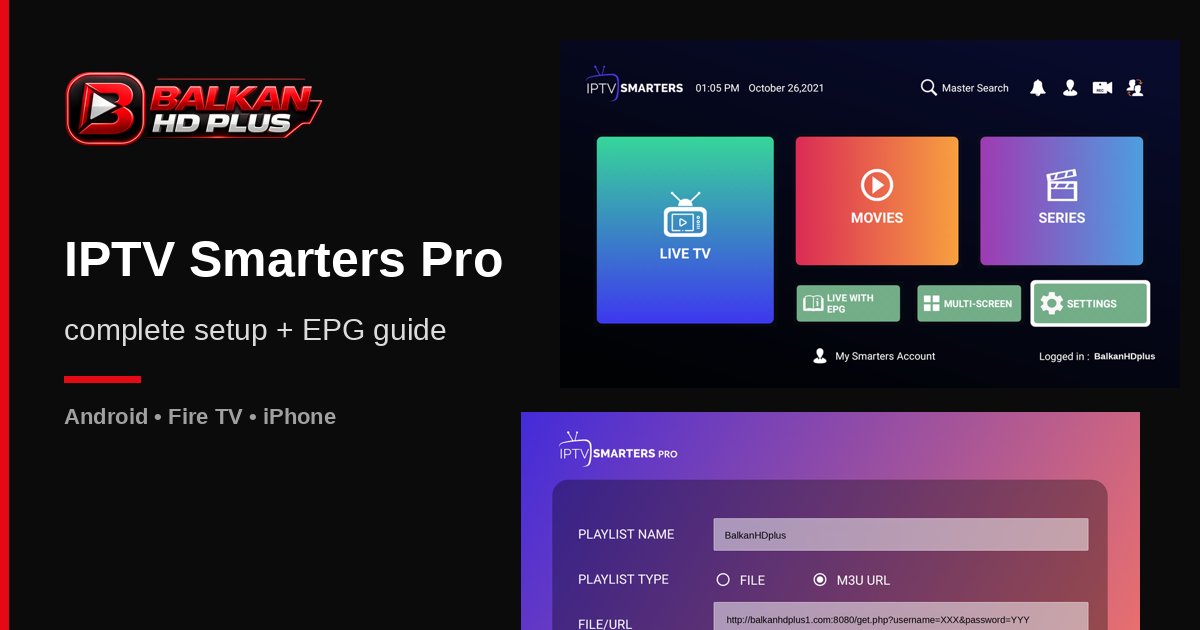
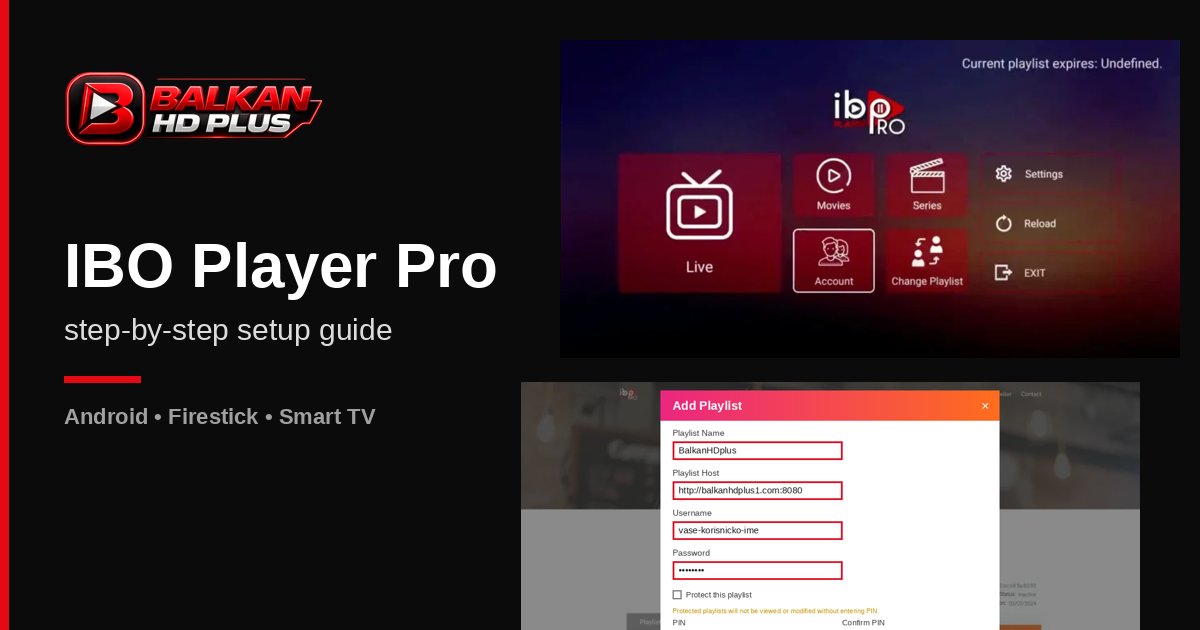
Which player? On the Fire TV Stick the best are IPTV Extreme (free, lightweight), IPTV Smarters Pro (with TV guide) and IBO Player Pro.
Ready to start?
First month €6. After that, €10/month or €100/year. No obligation to renew.
Step 4: Add your BalkanHD+ list
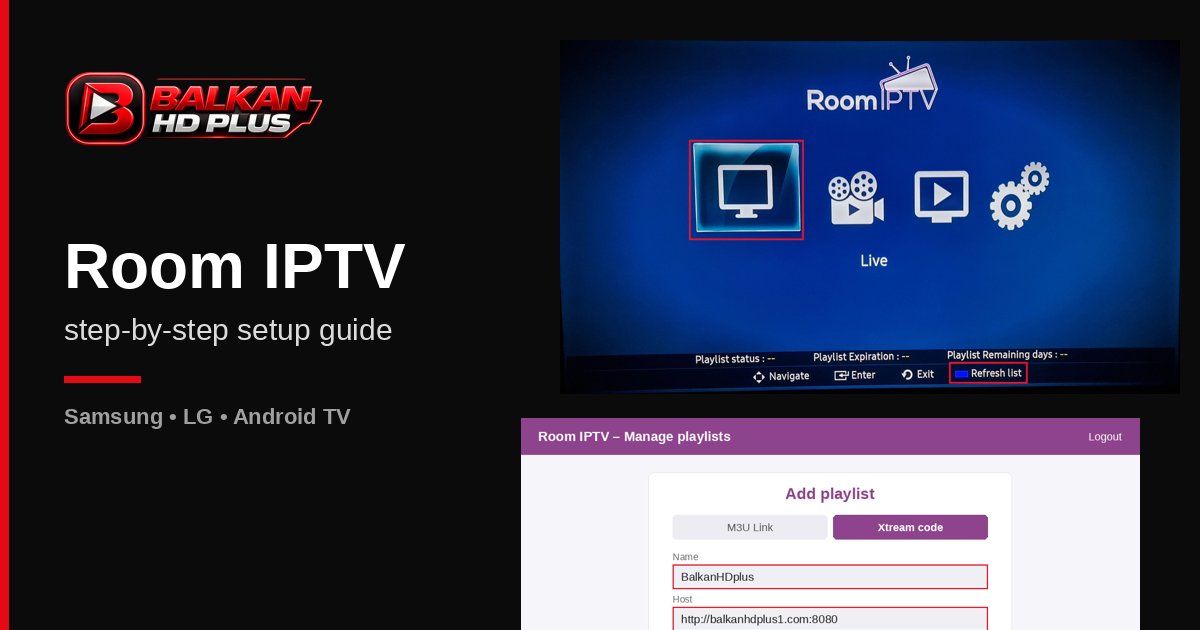
Launch the player and add the list – it works just like on an Android phone. Detailed guides with screenshots: IPTV Extreme, Smarters Pro, IBO Player Pro. Tip: hold the Home button to open the quick menu and add the player to your favourites so it is first on screen.
5 tips to keep your Fire TV Stick running smoothly
- Ethernet adapter – for 10–15€ you get a wired connection; the best cure for freezing.
- 5 GHz WiFi – if you use WiFi, connect to your router's 5 GHz network, not 2.4 GHz.
- Turn off Data Monitoring – Settings → Preferences → Data Monitoring → Off.
- Clear the cache – Settings → Applications → Manage Installed Applications → player → Clear cache.
- Restart once a week – Settings → My Fire TV → Restart.
If the picture still freezes, see IPTV buffering – 12 solutions.
Common problems and fixes
There is no Developer Options menu
On Fire OS you unlock it with seven clicks on the device name (step 2). If Install unknown apps is still missing, you probably have a Vega OS model.
Downloader is not in the store
That is almost certainly a Vega OS device. Message us on WhatsApp and we will suggest an alternative.
The player crashes or is slow
Clear the app cache and restart the stick. Also check free storage (Settings → My Fire TV → About → Storage).
Frequently Asked Questions
Which Fire TV Stick should I buy for IPTV in 2026?
The Fire TV Stick 4K Max (2nd gen) or Fire TV Cube – both run Fire OS, have enough power for 4K and allow installing IPTV players. Avoid Vega OS models.
Do I need an Amazon account?
Yes, the stick is activated with an Amazon account. It is free and you do not have to buy anything.
Does the Fire TV Stick work with any TV?
With any TV that has an HDMI port – including old models that are not Smart TVs.
Can I take the stick on holiday?
Yes. Plug it into the hotel or apartment TV and connect to WiFi – the list works anywhere in Europe.
How much does BalkanHD+ cost?
You can start with a paid 6€ trial month. All packages are on the pricing page.
Ready to start?
First month €6. After that, €10/month or €100/year. No obligation to renew.
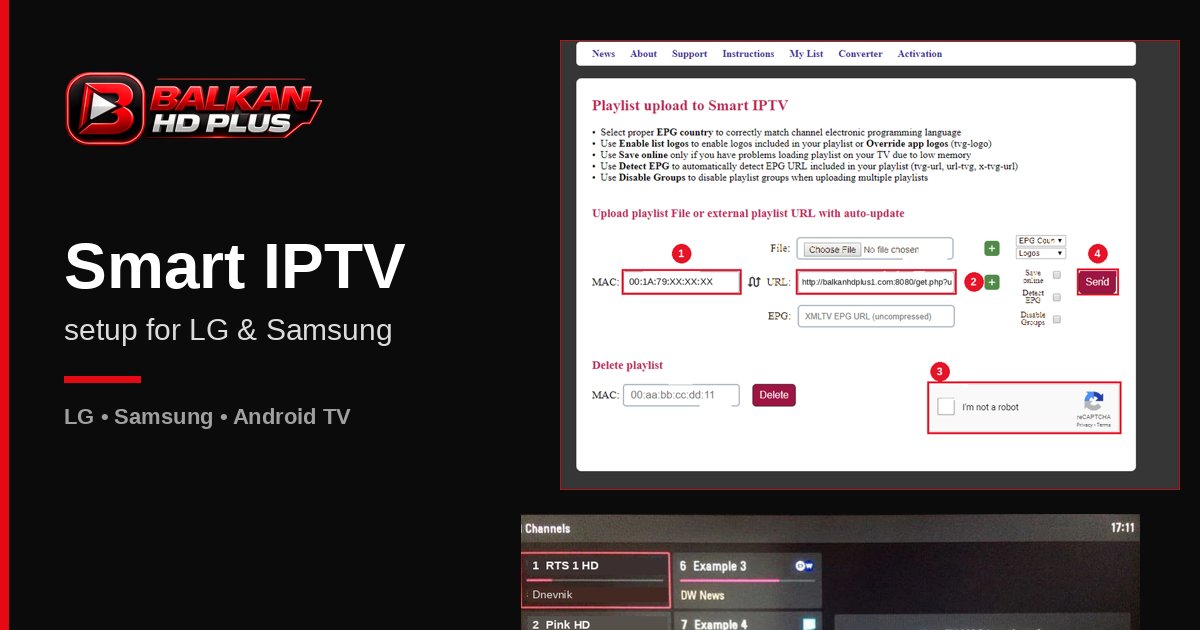
Smart TV without a stick? Read which IPTV app for Samsung and LG or browse all setup guides.