How Much Internet Do You Need for IPTV? SD, HD, Full HD & 4K (2026 Guide)
Exact speeds per quality and number of devices, how to run a proper speed test, cable vs WiFi and how much mobile data IPTV uses.
Short answer: for stable IPTV in Full HD you need about 20 Mbps per TV, around 35 Mbps for 4K and just 5 Mbps for SD. But the speed in your contract isn't everything – the picture is far more often ruined by unstable WiFi than by slow internet. In this 2026 guide we explain how much you really need, how to measure it properly and what to do when the connection is weak.
How many Mbps for SD, HD, Full HD and 4K
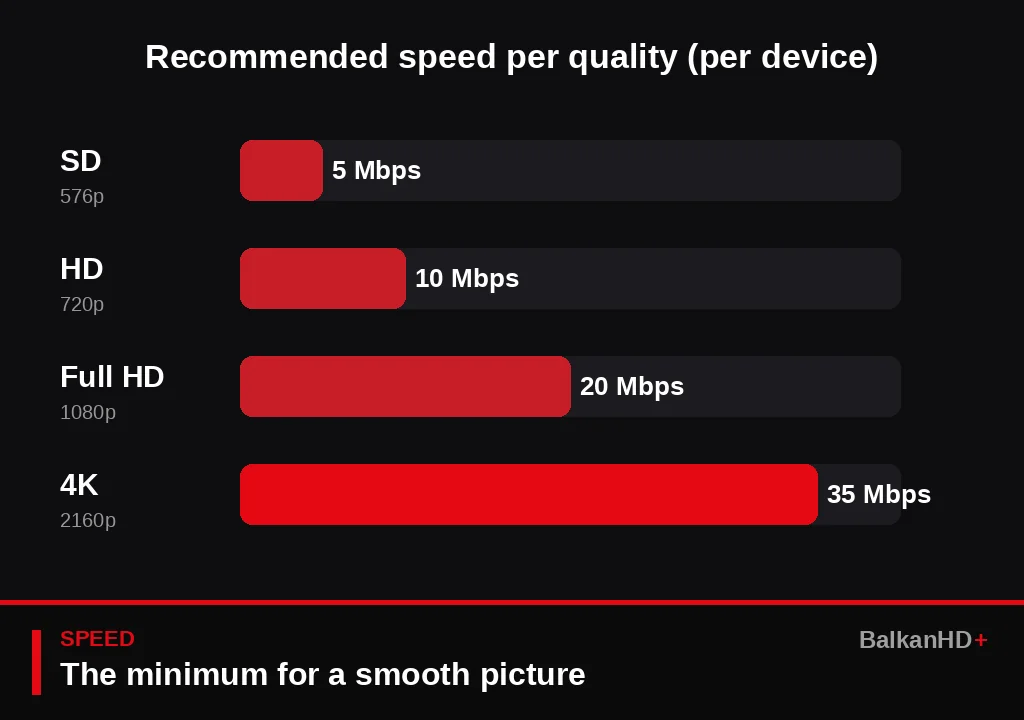
An IPTV channel sends a constant stream of data (bitrate). To avoid freezing, your internet should be at least twice as fast as the channel itself – that headroom covers busy moments on the network and 50 fps sports broadcasts.
| Quality | Channel bitrate | Recommended speed | Best for |
|---|---|---|---|
| SD (576p) | 1.5–3 Mbps | 5 Mbps | Phone, weak mobile signal |
| HD (720p) | 3–5 Mbps | 10 Mbps | Tablet, small TV |
| Full HD (1080p) | 5–8 Mbps | 20 Mbps | Most TVs – our recommendation |
| 4K (2160p) | 15–25 Mbps | 35 Mbps | 4K TV + Fire TV Stick 4K Max / Android TV |
Good news for 2026: more and more channels use the H.265 (HEVC) codec, which needs 30–40% less data than the old H.264 for the same quality. Your device has to support it – older TVs don't and show a black screen (fix in IPTV not working).
Add up every device in the house
The recommended speed is per device watching at the same time. If the living room is showing a match in 4K while the kids watch cartoons in HD on a tablet, you need 35 + 10 = 45 Mbps – plus phones, video calls and home office.
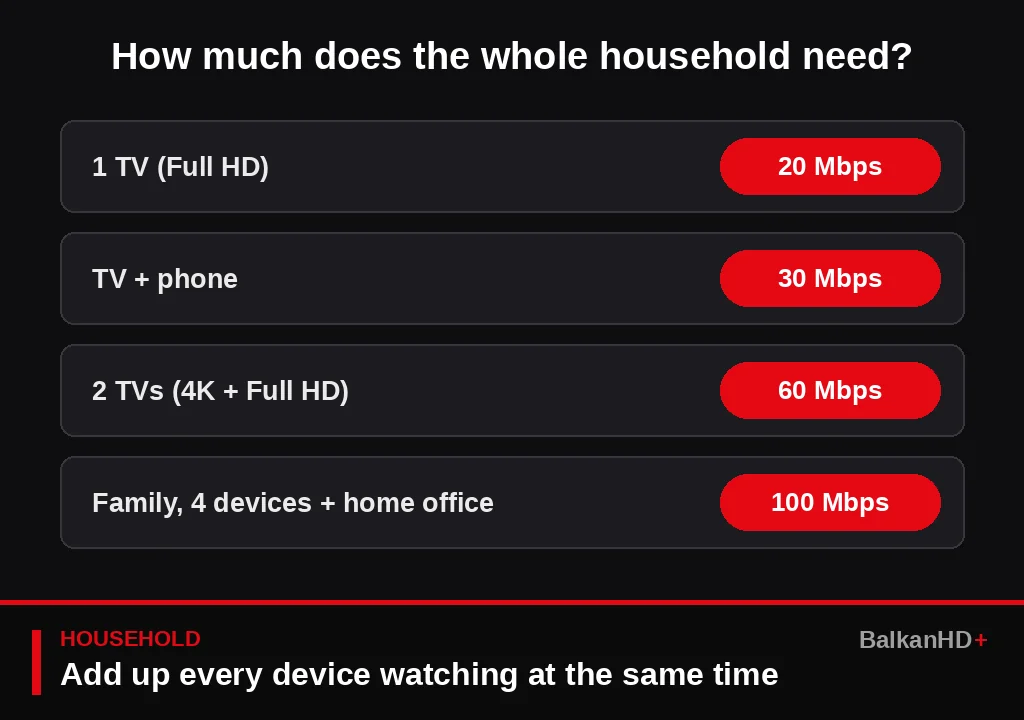
In practice: a 50 Mbps plan is enough for most families, and 100 Mbps is comfortable with two TVs and someone working from home. Upload speed hardly matters for IPTV – 2 Mbps is plenty.
More important than speed: stability
100 Mbps over poor WiFi often performs worse than 30 Mbps over a cable. For IPTV watch three values:
- Ping – under 50 ms is ideal; IPTV isn't gaming, so even 80 ms is fine.
- Jitter (ping variation) – under 30 ms. High jitter is the main cause of the spinning wheel.
- Packet loss – must be 0%. Even 1–2% causes stutter and blocky pixels.
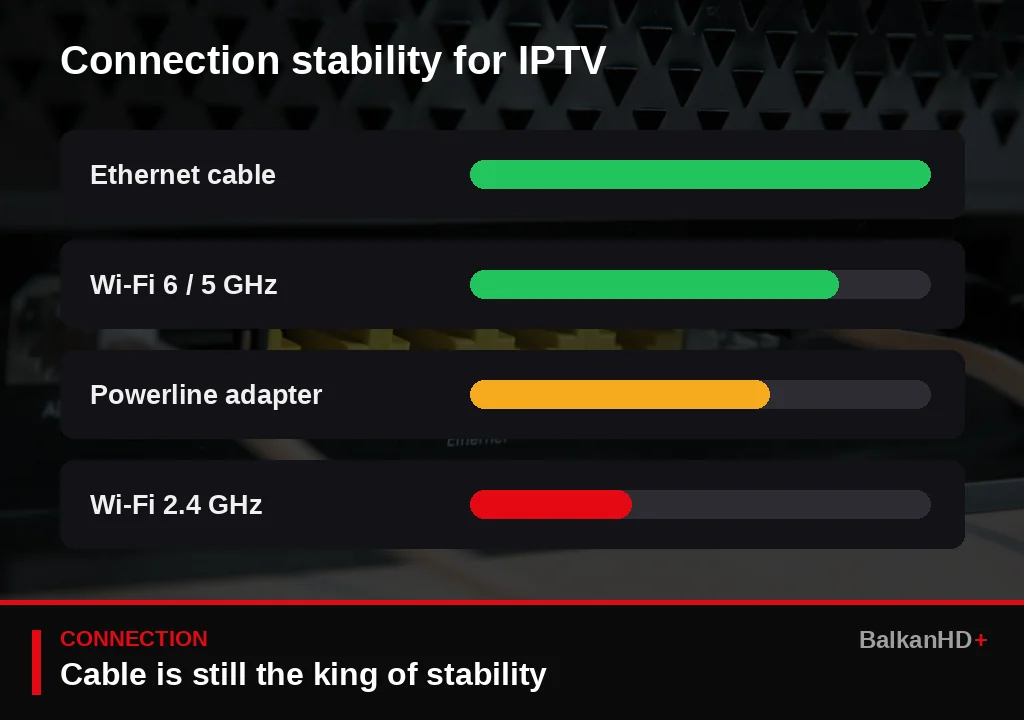
Cable, WiFi or powerline?
- Ethernet cable – the best choice. For the Fire TV Stick there's an Ethernet adapter for 10–15€.
- 5 GHz WiFi or Wi-Fi 6/6E/7 – great if the router is in the same or next room. The Fire TV Stick 4K Max supports Wi-Fi 6E.
- Powerline adapters (internet through your power sockets) – a good fix when you can't run a cable.
- 2.4 GHz WiFi – longer range, but disturbed by neighbours' networks, microwaves and Bluetooth. Avoid it for 4K.
In a large flat or a house with several floors a mesh WiFi system or a cable-connected repeater helps the most.
How to run a proper speed test
- Test on the device you watch on, not on your phone next to the router. On Android TV and Fire TV install the Speedtest or Analiti app; on Samsung and LG open fast.com in the TV browser.
- Test in the evening, between 8 and 10 pm – that's when your provider's network is busiest and shows its real speed.
- Run 3 tests and look at the weakest result, not the best.
- Stop other downloads and video calls while testing.
Tip for Germany: the Bundesnetzagentur's official tool breitbandmessung.de serves as proof if you keep getting much less than your contracted speed – you are then entitled to a price reduction or to cancel the contract. In Austria the same is done with RTR-Netztest. More about local providers in our guides for Germany, Austria and Switzerland.
Ready to start?
First month €6. After that, €10/month or €100/year. No obligation to renew.
IPTV over mobile data, 5G routers and Starlink
IPTV also works over a phone hotspot, a 5G home router or satellite internet – just keep an eye on data usage:
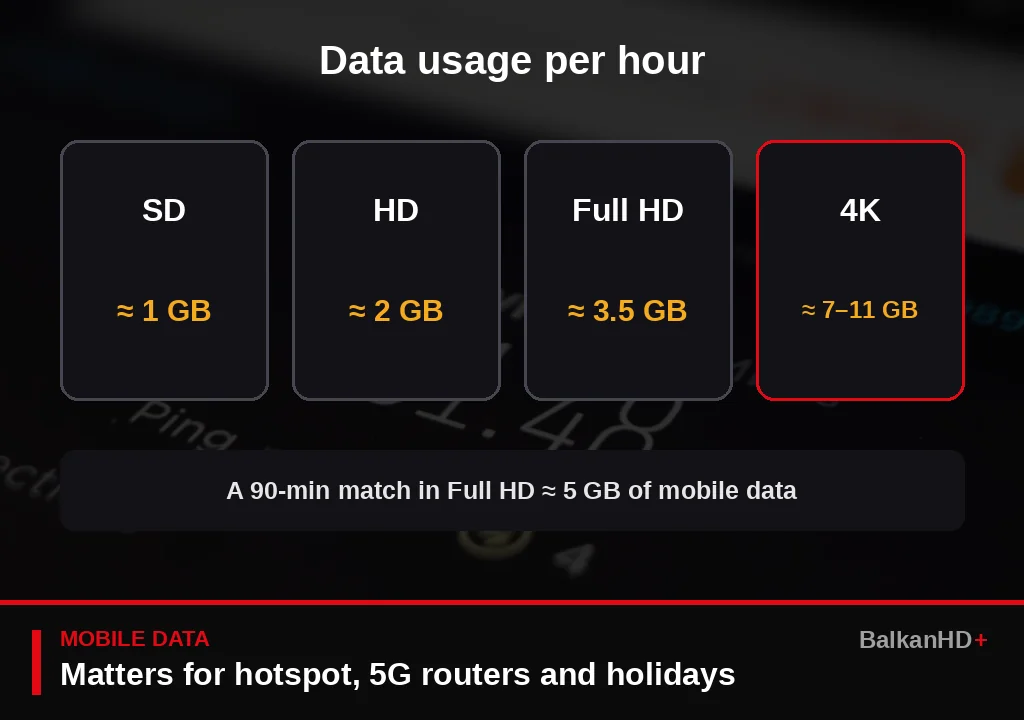
- On holiday pick HD instead of Full HD – it saves almost half the data and on a phone you barely see the difference.
- 5G home routers work very well, but check your plan for data caps or throttling.
- Starlink is fast enough for 4K, but short dropouts can freeze the picture for a few seconds – set the player's buffer size to “large”.
5 quick tricks when your internet is weak
- Restart the router: unplug for 30 seconds, then wait 2 minutes after switching on.
- Choose the HD version of the channel instead of 4K/FHD.
- Turn off your VPN – it costs 10–30% of your speed and raises ping.
- Move the TV to the 5 GHz network or connect it with a cable.
- Close apps downloading in the background (updates, cloud backup).
Still freezing? See the full list IPTV buffering – 12 solutions, and for choosing hardware the best IPTV devices in 2026.
Frequently Asked Questions
Is 10 Mbps enough for IPTV?
For one device in HD – yes. For Full HD on a TV or several devices at once we recommend at least 20–30 Mbps.
How much internet does 4K IPTV need?
About 35 Mbps per 4K device with a stable connection – ideally by cable or over Wi-Fi 6.
Do I need 1 Gbps fibre?
No. Gigabit makes no difference for IPTV – stability matters more. 50–100 Mbps is enough even for a big family.
Why does IPTV freeze when my speed test looks good?
Usually it's the WiFi: the test on your phone next to the router looks great, but the TV two rooms away gets far less. Test on the TV itself and check the jitter.
How much data does IPTV use?
About 1 GB per hour in SD, 2 GB in HD, 3.5 GB in Full HD and 7–11 GB in 4K.
How much does BalkanHD+ cost?
You can start with a paid 6€ trial month and see how it runs on your own internet. All packages are on the pricing page.
Ready to start?
First month €6. After that, €10/month or €100/year. No obligation to renew.
Ready to set up? Browse all setup guides or read IPTV on Fire TV Stick 2026.